
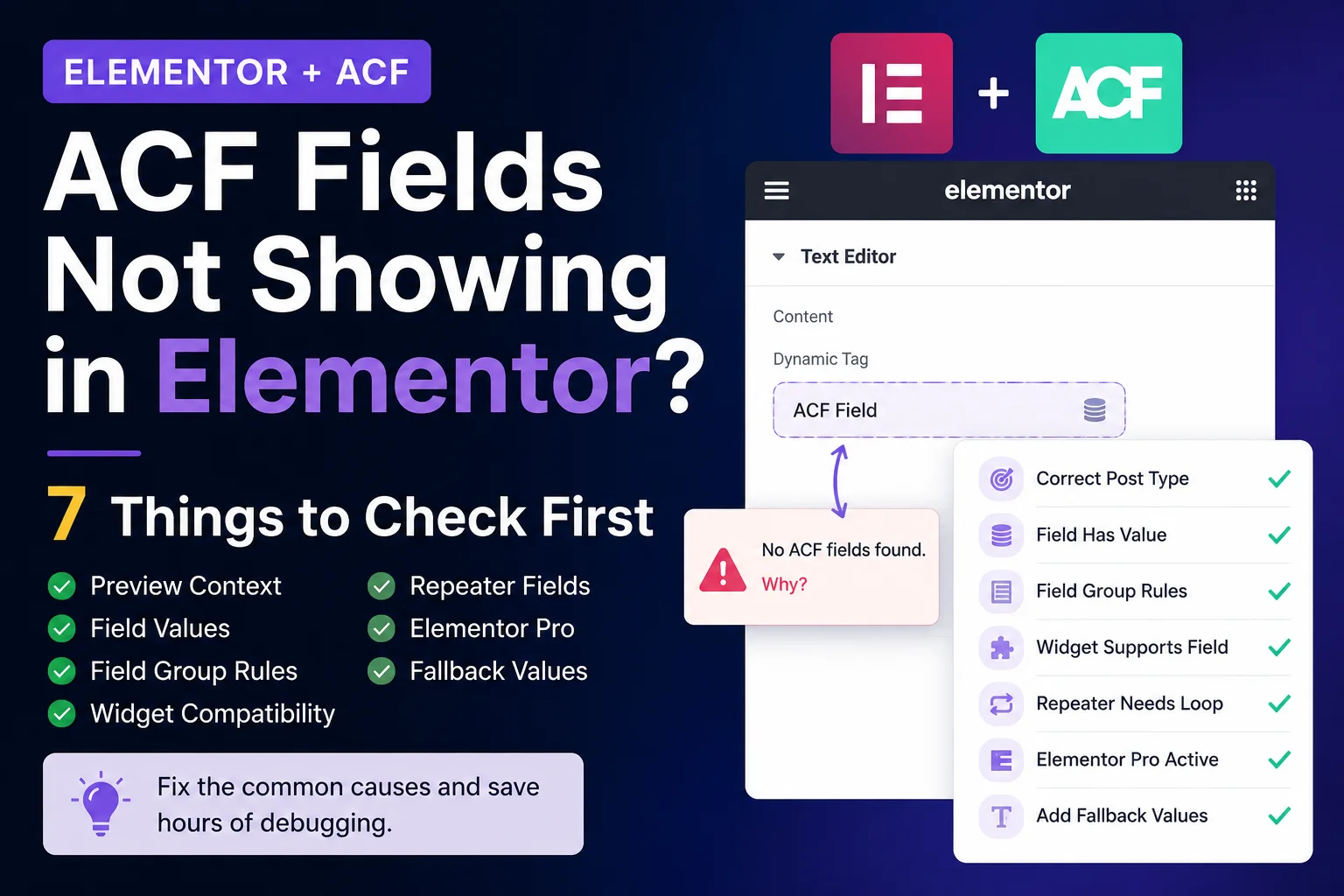
If your ACF fields are not showing in Elementor, the problem is not always with ACF itself. In many cases, the field is created correctly, but Elementor is previewing the wrong content, the selected post has no saved value, the widget does not support that field type, or Elementor Pro dynamic features are not available.
This issue is common when working with Elementor, Advanced Custom Fields, custom post types, dynamic templates, loop grids, image fields, repeater fields, and conditional content.
Before rebuilding your template or changing plugins, check these seven things first.
1. Check if Elementor is previewing the correct post type
One of the most common reasons ACF fields appear blank in Elementor is the wrong preview context.
For example, you may be building a Single Template for a custom post type such as:
- Property
- Project
- Product
- Team Member
- Portfolio
- Case Study
But Elementor may be previewing a normal Page or Post instead of the correct custom post type.
When this happens, Elementor tries to read ACF values from the wrong content item. Since that page or post does not contain the expected custom fields, the output may appear blank.
What to check
Open your Elementor template and go to:
Elementor Editor → Page Settings / Gear Icon → Preview Settings
Then confirm:
- Preview Dynamic Content is set to the correct post type.
- The selected preview item actually belongs to that post type.
- The selected preview item has ACF field values saved.
Example
If your ACF fields are assigned to a custom post type called Property, your preview should be:
Preview Dynamic Content as: Property
Selected Preview Post: A Property post with real ACF data
If Elementor is previewing a normal page like Privacy Policy, your property fields will likely appear blank.
2. Check if the selected preview post has ACF values
Sometimes Elementor is using the correct post type, but the selected preview post has no saved ACF value.
This can make the field look broken even when everything is configured correctly.
Example
You have an ACF field called:
property_location
You add it inside an Elementor template, but nothing appears.
The reason may be simple: the selected preview post does not have a value saved for property_location.
What to check
Open the post being used in Elementor preview.
Then check:
- Is the ACF field visible on the edit screen?
- Does the field contain a saved value?
- Was the post updated after entering the value?
- Are you previewing the same post inside Elementor?
If the field is empty in WordPress, Elementor cannot display anything.
Quick test
Create two test posts:
- One post with all ACF fields filled.
- One post with ACF fields empty.
Now switch Elementor Preview Settings between both posts.
If the field appears for the filled post but disappears for the empty post, the issue is not Elementor or ACF. The selected post simply has no saved value.
3. Check if the ACF field group is assigned to the correct post type
ACF fields appear on WordPress edit screens based on field group location rules.
If the field group is assigned to the wrong post type, your fields may not appear where you expect them.
Example
You created an ACF field group called Property Details, but its location rule is:
Post Type is equal to Page
Your actual content is stored inside a custom post type called Property.
In this case, the field group will appear on Pages, not on Property posts.
What to check
Go to:
ACF → Field Groups → Your Field Group → Location Rules
Confirm the rule matches the content type you are working with.
For a Property custom post type, the location rule should be something like:
Post Type is equal to Property
Important note
Even if the field group location is wrong, Elementor may still display old saved meta values in some cases. That is because ACF values are stored as post meta in the database.
So the issue is not always:
“Elementor cannot display the field.”
The more accurate issue may be:
“The field group is not available on the correct edit screen, so editors cannot add or update the values properly.”
This can create confusing behavior, especially on websites with existing data.
4. Check whether the widget supports that ACF field type
Not every Elementor widget supports every ACF field type.
For example, a Heading widget expects simple text. It may show text fields, number fields, date fields, or simple values.
But it may not show image fields, repeater fields, gallery fields, relationship fields, or group fields in the same way.
Example
You created an ACF image field called:
property_image
You try to use it inside an Elementor Heading widget.
The field may not appear in the dynamic tag list because the Heading widget is text-based. Elementor understands that an image field is not suitable for a text heading.
What to check
Ask yourself:
- Is this widget expecting text?
- Is this widget expecting an image?
- Is this widget expecting a URL?
- Is this field a simple field or a complex field?
- Am I using the correct Elementor dynamic tag?
Common examples
| ACF Field Type | Better Elementor Usage |
|---|---|
| Text | Heading, Text Editor |
| Number | Heading, Text Editor |
| URL | Button link, Icon link |
| Image | Image widget, background image |
| True/False | Conditional logic or custom display |
| Repeater | Custom shortcode, custom widget, PHP loop |
| Group | Custom handling or subfield output |
| Relationship | Query/loop/custom handling |
If your field does not appear in Elementor, it may not be missing. It may simply be unavailable in that widget context.
5. Understand why repeater fields do not appear in basic widgets
ACF repeater fields are one of the most common sources of confusion inside Elementor.
A repeater field does not store one simple value. It stores multiple rows, and each row can contain subfields.
For example, an Amenities repeater may contain:
- Icon
- Amenity name
- Description
And it may have multiple rows:
- Parking
- Green Area
- 24×7 Security
- Gym
- Swimming Pool
A basic Elementor Heading widget cannot directly understand this structure. It expects one simple value, not multiple rows with nested fields.
Common symptom
You create an ACF repeater field called:
amenities
Then you try to select it inside Elementor Heading or Text Editor dynamic tags.
The field does not appear.
This is expected behavior in many setups.
Why this happens
Repeater fields need loop logic.
A normal text widget cannot automatically decide:
- Which repeater row to display
- Which subfield to use
- How many rows to show
- What HTML structure to generate
- Whether icons, images, or links should be rendered
Common solutions
To display ACF repeater fields in Elementor, you usually need one of these:
- A custom shortcode
- A custom Elementor widget
- PHP template code
- A repeater-compatible Elementor addon
- A custom loop/rendering function
- A different data structure using child posts or relationships
If your repeater field is not showing in Elementor basic widgets, the field is probably not broken. It is just a complex field type that needs a different rendering method.
6. Confirm Elementor Pro is active
Elementor’s advanced dynamic content features usually require Elementor Pro.
If Elementor Pro is not active, you may not have access to:
- Theme Builder
- Single Post templates
- Archive templates
- Dynamic Tags
- ACF dynamic field integration
- Advanced template conditions
Common symptom
You try to create a Single Post template, but Elementor only gives basic template options.
Or you click the dynamic tag icon and see an upgrade prompt.
In this case, the issue is not ACF. The required Elementor Pro capability is missing.
What to check
Go to:
WordPress Dashboard → Plugins
Confirm:
- Elementor is installed and active.
- Elementor Pro is installed and active.
- Elementor Pro license is connected if required.
- Elementor and Elementor Pro versions are compatible.
Important
If you are using Elementor Free only, you may still display ACF fields using custom shortcodes, PHP, or block/theme code. But Elementor’s native dynamic template workflow usually requires Elementor Pro.
7. Add fallback values for empty fields
Sometimes the ACF field is working correctly, but the value is empty.
In that case, Elementor may display nothing unless you set a fallback.
Example
You have a field:
property_location
Some posts have a location value. Some posts do not.
If the field is empty, Elementor may output a blank space.
This can make the template look broken.
Solution
In Elementor, open the dynamic tag settings for the field.
Look for the Advanced section.
Add a fallback value such as:
- Location coming soon
- N/A
- Details will be updated soon
- Not available
- Contact us for details
Example
If property_location is empty, show:
“Location coming soon”
This creates a cleaner user experience and prevents blank sections from appearing on the page.
When to use fallback values
Use fallback values when:
- The field is optional.
- Some posts are incomplete.
- You are still adding content.
- You want to avoid blank spaces in templates.
- You are building archive cards or listing pages.
Do not use fallback values to hide real configuration problems. If the field should always have a value, fix the content or field setup instead.
Quick Diagnostic Checklist
Before assuming Elementor or ACF is broken, check this list:
- Is Elementor previewing the correct post type?
- Is the selected preview post the correct item?
- Does the selected post actually have ACF values saved?
- Is the ACF field group assigned to the correct post type?
- Is Elementor Pro active?
- Is the widget compatible with the selected ACF field type?
- Are you trying to display a repeater field inside a basic widget?
- Is the field empty?
- Is a fallback value configured?
- Are you using the correct dynamic tag?
- Have you updated the post after saving ACF values?
- Have you cleared cache after making changes?
- Are Elementor, Elementor Pro, ACF, and WordPress updated and compatible?
Common Causes and Fixes
| Problem | Likely Cause | What to Try |
| ACF field appears blank | Selected preview post has no value | Choose a post with saved field data |
| ACF field group not visible | Location rule targets wrong post type | Update ACF field group location rule |
| Dynamic tag missing | Widget does not support that field type | Use a compatible widget |
| Repeater field missing | Basic widget cannot render repeater rows | Use shortcode, PHP loop, or compatible addon |
| Template cannot be created | Elementor Pro not active | Activate Elementor Pro or use custom code |
| Correct field shows on one post but not another | Some posts have empty values | Add values or fallback text |
| Page title appears instead of CPT title | Wrong preview context | Set preview source to correct post type |
Submit Your Case for Research Review
Insight Origins is currently researching recurring Elementor + ACF issues to understand whether they can be diagnosed automatically through a read-only WordPress diagnostic tool.
We are currently studying problems such as:
- ACF fields not showing in Elementor Dynamic Tags
- ACF fields appearing blank
- Wrong Elementor preview context
- ACF repeater fields not showing in basic widgets
- Field group location mismatch
- Widget and field type compatibility issues
- Missing Elementor Pro dynamic capabilities
- Empty fields without fallback values
Final Thoughts
When ACF fields do not show in Elementor, the problem is often not one single thing.
It may be caused by:
- Preview context
- Empty field values
- ACF location rules
- Unsupported field types
- Widget limitations
- Missing Elementor Pro features
- Missing fallback values
The fastest way to debug the issue is to isolate the problem step by step.
Start with the preview post.
Then check whether the field has data.
Then check the field group location.
Then check the widget and field type compatibility.
This structured approach can save hours of trial and error and helps identify whether the issue is a content problem, configuration problem, or Elementor compatibility limitation.